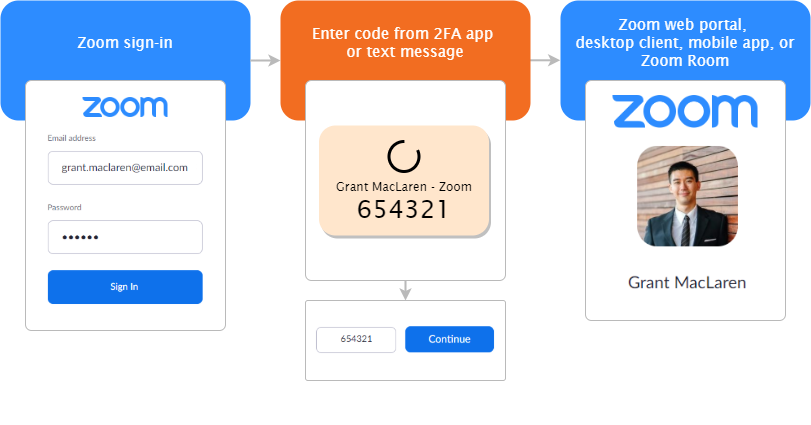
Two-step verification is a two-step sign-in process that requires a one-time code from a mobile app, phone call, or text message in addition to the main Zoom sign-in for users with the work email (email and password) login type. This provides an additional layer of security since users will need access to their phone to sign in to the Zoom web portal, desktop app, mobile app, or Zoom Room.
Admins can enable two-step verification for users, requiring them to set up and use two-step verification. Admins can also reset an existing two-step verification setup if a user has lost access to their authenticator app or verified device.
Note: If two-step verification is disabled, users with a work email login type are required to enter a time-based one-time password (OTP) sent to their email if Zoom detects an unusual login from a different country or device than normal.
Requirements for two-step verification
Enable two-step verification
Account owner or admin privileges
Pro, Business, Education, or Enterprise account
Set up and use two-step verification
Phone number that can receive SMS; or
Android or iOS device with an authenticator app that supports Time-based One-Time Password (TOTP) protocol. The following apps are recommended:
Under Authentication methods, enable or disable one of the following authentication methods.
Authenticator app: Use a third-party authentication app to generate login codes. (Example: Google Authenticator, Microsoft Authenticator, and FreeOTP.)
Phone code & email code: Use text message, SMS, or email address to send login codes. Note: At least one of these authentication methods must be selected. The verification method will be selected dynamically based on your sign-in method.
Click Save to apply your changes.
Reset two-step verification for a user
You can reset a current two-step verification setup if a user has lost access to their two-step verification setup. For example, they misplaced their device, uninstalled the two-step verification app, or removed Zoom from their two-step verification app.
In the top-right corner, click your profile picture or initials, then click Profile.
Under Sign In, to the right of Two-StepVerification, do the following actions:
If Two-Step Verification is Off, click Turn On to enable it.
If Two-Step Verification is On, click Turn Off to disable it.
Enter your password to turn on or turn off two-step verification.
If a verification dialog appears, click Next to enable two-step verification, or click Turn off to disable two-step verification.
Set up two-step verification
If your Zoom admin has enabled two-step verification for you, you must set up two-step verification when you sign in to the Zoom portal.
Sign in to the Zoom web portal after your admin has enabled two-step verification.
Select Authentication App or SMS as your authentication method.
Follow one of these sections depending on what you selected:
Sign in using two-step verification
Use the authenticator app
Sign in to the Zoom web portal, desktop app, mobile app, or Zoom Room.
Enter your password.
Access your authentication app to receive a verification code.
Enter the code from the authenticator app.
Click Verify.
Use phone verification
Sign in to the Zoom web portal, desktop app, mobile app, or Zoom Room.
Enter your password.
Select one of the following phone verification methods:
Send code via SMS
Send code via phone call
Enter the verification code that you have received from the phone call or SMS.
Click Verify.
Sign in using a two-step verification recovery code
If you no longer have access to your two-step verification codes (for example, you misplaced your device, uninstalled your two-step verification app, or removed Zoom from the two-step verification app, you can sign in using a recovery code you obtained when you set up two-step verification.
Note: You can also contact your admin to reset your two-step verification setup. When you sign in to the Zoom web portal, desktop app, or mobile app, you will be prompted to set up two-step verification again.
Sign in to the Zoom web portal, desktop app, mobile app, or Zoom Room.
Enter your password.
At the bottom of the page, click Try another way.
Click Recovery codes.
Enter one of the recovery codes you obtained during setup. Note: Each recovery code can only be used once.
After setting up two-step verification, you can edit your existing setup if you want to remove a device, set up two-step verification on another device, or view recovery codes.
 .
 icon, select the roles, and click OK.