The Zoom Phone quick start guide assists end users with setting up your Zoom Phone account and using essential features like making calls and checking voicemail. Read this quick start guide for a quick summary of the features and click the embedded links to learn more.
Note: Zoom supports secure voice calls across all supported devices, desktop app, mobile app, and Zoom Web App. Learn more about Zoom Phone encryption.
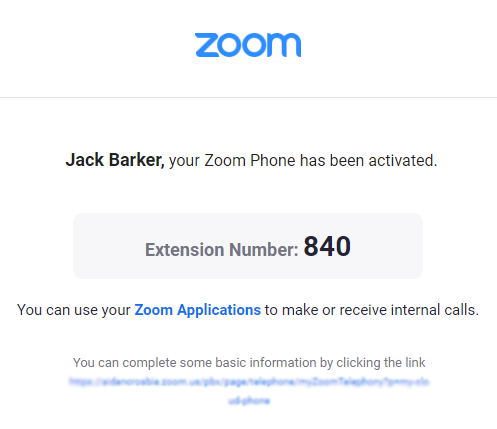
If your Zoom Phone admin assigned you a Zoom Phone license, you will get an email notification with a link to set up Zoom Phone.
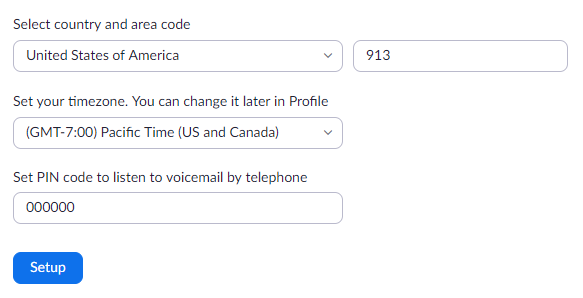
After the initial setup, you should adjust your Zoom Phone settings in the web portal.
By default, you can call the contacts directory in the Zoom Workplace desktop app or mobile app to call people in the same organization. Follow these articles to add contacts from third-party services:
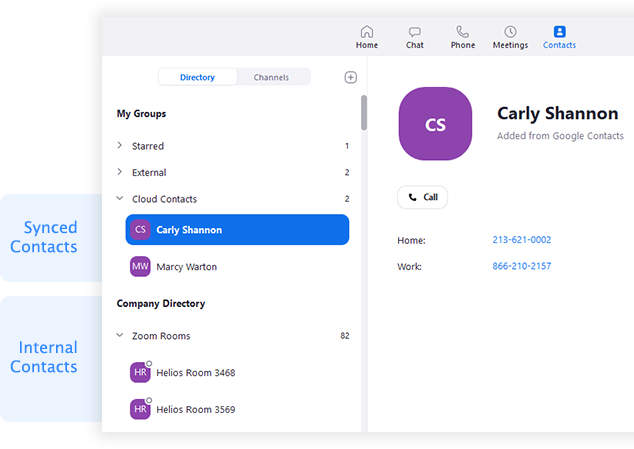
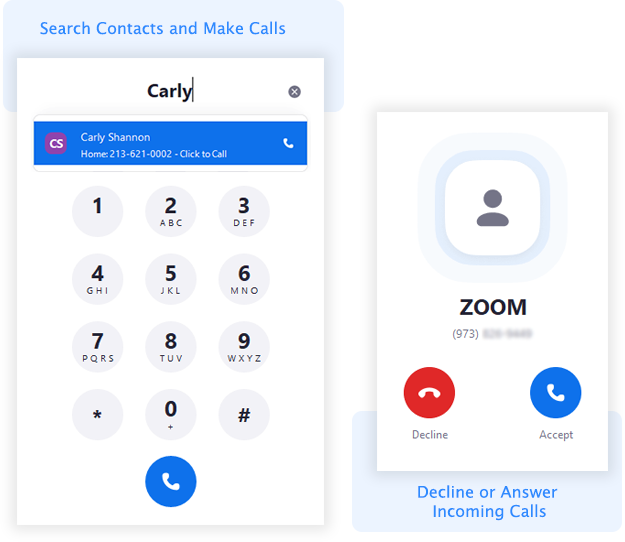
After setup, you can start making and receiving calls using Zoom Phone. Make calls using the dial pad or search through your internal, external or synced contacts. For incoming calls, you can decline a call to route it to your voicemail.
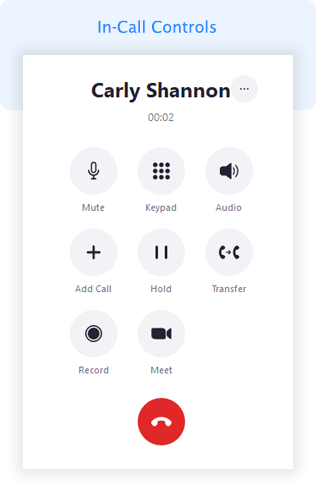
While in a call, you can:
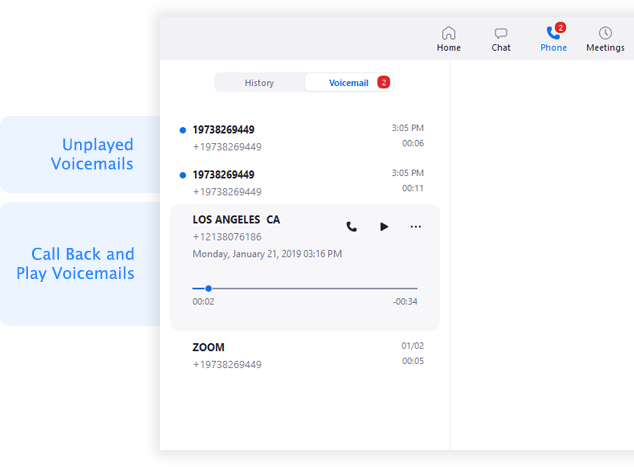
Zoom Phone forwards all unanswered and declined inbound calls to your voicemail. You can use the Zoom Workplace desktop app, mobile app, Zoom Web App, or web portal to play and manage your voicemail messages.
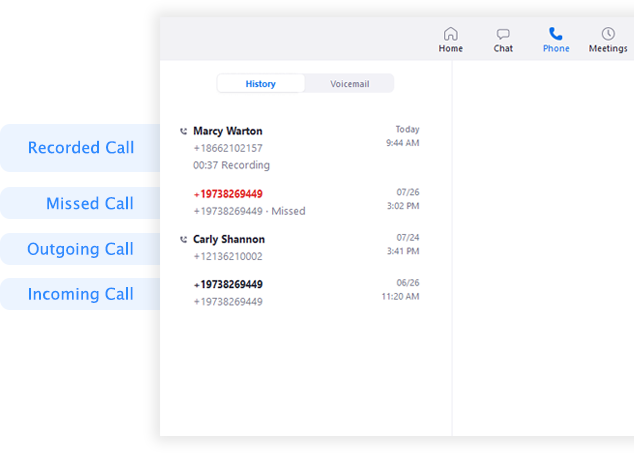
After making, receiving, or recording calls, you can check your call history and recordings on the Zoom Workplace desktop app, mobile app, Zoom Web App, or web portal.
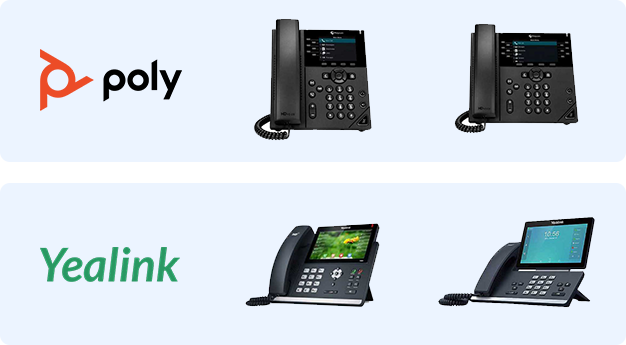
If your Zoom Phone admin sets up a desk phone for you, you can use it to make and receive calls and check voicemail. See our quick start guide for Polycom VVX series and Yealink T4/T5 series phones. Desk phones don't support all Zoom Phone features.
Once you are familiar with Zoom Phone, use these features to further enhance your experience: