Adding, removing, and sharing your pronouns in Zoom
Pronouns are words people use to refer to themselves, such as she/her, he/him, or they/them. At Zoom, care is one of our core values and giving people the option to share their pronouns helps support respectful communication on our platform. While the Pronouns feature can be particularly meaningful to LGBTQ+ users, anyone can choose to add pronouns to their Zoom personal account profile to better express how they'd like to be referred to.
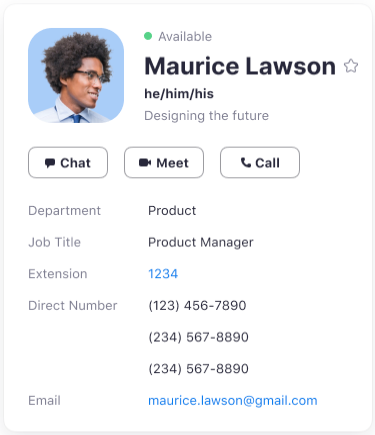
When you add pronouns to your Zoom personal account profile, they appear on your Zoom profile card and in Zoom contacts across the Zoom Workplace desktop app, Zoom Workplace mobile app, and Zoom Rooms app. You can also choose how your pronouns are shared when you join meetings as a host or participant, or webinars as a host or panelist.
Notes:
For Basic (Free) accounts and accounts with a single licensed user, the Pronouns feature is enabled by default.
How to add, remove, and manage pronouns in your Zoom personal account profile
You can edit your personal account profile to include your pronouns so they appear on your Zoom profile card and help your Zoom contacts understand how you'd like to be referred to. When you save your pronouns, you'll also choose how they're shared when you join meetings or webinars as a host, participant, or panelist.
In the top-right corner, click your profile picture or initials, then click Profile.
On the right side of your name, click Edit.
In the Pronouns field, enter or update your pronouns.
To remove your pronouns, clear the Pronouns field.
In the How would you like to share your pronouns? drop-down menu, choose how your pronouns are shared when you join meetings or webinars as a host, participant, or panelist:
Always share in meetings and webinars: Your pronouns will automatically appear next to your display name in your video thumbnail and in the Participants panel.
Ask me every time after joining meetings and webinars: You will be asked every time you join a meeting as a host or participant, or webinar as a host or panelist if you want your pronouns to appear next to your display name in your video thumbnail and in the Participants panel. Note: Choose this option if you want to decide on a meeting-by-meeting basis.
Do not share in meetings and webinars: Your pronouns will not appear next to your display name in any meetings or webinars. You can manually share them later. Note: Even if you choose not to share your pronouns in meetings or webinars, your pronouns will still appear in your Zoom profile card and be visible to your Zoom contacts if you have entered them in the Pronouns field.
Click Save. Note: Your pronouns and sharing preferences will be updated based on your saved changes. If you cleared the Pronouns field, your pronouns will be no longer appear on your Zoom profile card, be visible to your Zoom contacts, and be available to share during meetings and webinars.
How to share or stop sharing your pronouns during meetings or webinars
If you've added pronouns to your Zoom personal account profile, you can control how they're shared when you join meetings as a host or participant, or webinars as a host or panelist. Depending on your settings, Zoom can automatically share or hide your pronouns, ask whether you'd like to share them each time you join, or let you manually share or stop sharing them at any time during an eligible meeting or webinar.
Notes:
Pronouns for webinar attendees are never visible.
Only webinar hosts and panelists can share pronouns during webinars.
If you choose to share your pronouns in an eligible meeting or webinar, they appear next to your display name in your video thumbnail and next to your display name in the Participants panel.
Share your pronouns when prompted after joining a meeting or webinar
If you selected the Ask me every time after joining meetings and webinars option in the Zoom web portal, you will be asked to confirm if you want to share your pronouns after joining every meeting as a host or participant, or webinar as a host or panelist.
Manually share your pronouns during a meeting or webinar
If you selected the Do not share in meetings and webinars option in the Zoom web portal or previously stopped sharing your pronouns, you can still manually share them at any time when you join meetings as a host or participant, or webinars as a host or panelist without updating your Zoom personal account profile.
Stop sharing your pronouns during a meeting or webinar
If you're already sharing your pronouns during a meeting or webinar, you can unshare them at any time without removing them from your Zoom personal account profile.