Changing your virtual background image When enabled , the virtual background feature allows you to display an image or short video as your background during a Zoom meeting, which can provide you with more privacy or a consistent and professional look for a presentation.
If you don't have your own images or videos for use as a virtual background, you can create custom backgrounds with AI, go without a virtual background, or blur the background instead. You can also use a virtual background in a Zoom Room .
Some virtual background options, such as virtual background without a green screen or using a video as your virtual background, require more system resources and have higher system requirements. Learn more about the system requirements for virtual backgrounds .
Requirements for applying or changing your virtual background
Image and video specifications for virtual backgrounds
Background image dimensions :
24-bit PNG or JPG/JPEG image format Maximum image size is 15MB We recommend cropping the image to match the aspect ratio of your camera before uploading it.
For example, if your camera is set to 16:9, an image of 1280x720 pixels or 1920x1080 pixels, both being the same 16:9 ratio, would work well. If you're not sure about your camera aspect ratio, use a background image with a minimum resolution of 1280x720 pixels. Browse some of the virtual backgrounds Zoom has collected , or use these sources for other royalty-free images: Pexels , Unsplash , Pixabay . Background video dimensions :
A MP4 or MOV video file Minimum resolution of 480x360 pixels (360p) and a maximum resolution of 1920x1080 pixels (1080p) Recommended setup for virtual backgrounds
With a green screen
A virtual background with a green screen provides the best virtual background effect and uses fewer system resources during the meeting. This method requires you to have a solid-colored screen, curtain, or wall behind you, and Zoom will replace the selected color with the image or video you selected. This method improves the sharpness and definition of the virtual background effect around you.
For best results:
Use a very bright and distinct color, such as a green or blue screen. The contrast in colors makes it easier to distinguish you in the foreground from the bright background. Higher quality cameras result in a better virtual background. See camera recommendations for details. Use uniform lighting and color. Do not wear clothing that is the same color as the virtual background.
Without green screen
Virtual background without a green screen provides the same effect as when using a green screen, only with less sharpness and definition around you. This is because without a solid, contrasting color behind you, the system is less likely to accurately distinguish you in the foreground from the background. This method requires more system resources, so it has higher system requirements .
For best results:
Higher quality cameras result in a better virtual background. See camera recommendations for details. Use uniform lighting and color. Make sure not only your face is illuminated, but also some of your background as well, as the contrast can help distinguish you from the background.
How to apply or change a virtual background
Windows | macOS | Linux
Change your virtual background before a meeting
Sign in to the Zoom desktop app . In the top-right corner, click your profile picture, then click Settings . Click the Video & effects tab. Click the Virtual backgrounds tab.Note : If you do not see the Virtual backgrounds tab and you have enabled it on the web portal , sign out of the Zoom desktop app and sign in again. (Optional) Choose from the following options to change or remove your virtual background:Note : If you are currently in a meeting or webinar with your video on, your virtual background will change in the live session if you change it from these settings.
Click None to remove your virtual background. Click Blur to blur your background . Choose from the available default or recently uploaded images or videos. To upload your own virtual background, click the add icon Download to download the package for virtual background without a green screen. To generate a custom virtual background using AI, click Generate next to Create AI virtual background , then enter your virtual background idea into the text box and click Generate . If you'd like a different result, click Try again to generate a new background. You can also select an artistic style for your image from the available options. (Optional) Click the I have a green screen toggle if you have a physical green screen set up. Ensure that you are using a solid background color when this option is enabled. You can then click on your video to select the correct color for the green screen. Change your virtual background during a meeting
Join a meeting on the Zoom desktop app. In the meeting controls toolbar, click the arrow icon Video . Click Video & effect settings .Video & effects side panel will open. Below your video preview, click the Virtual backgrounds tab, or scroll down to the Virtual backgrounds section. (Optional) In the Virtual backgrounds section, choose from the following options to change or remove your virtual background:Note : If you are currently in a meeting or webinar with your video on, your virtual background will change in the live session if you change it from these settings.
Click None to remove your virtual background. Click Blur to blur your background . Choose from the available default or recently uploaded images or videos. To upload your own virtual background, click the add icon Download to download the package for virtual background without a green screen. To generate a custom virtual background using AI, click Generate next to Create AI virtual background , then enter your virtual background idea into the text box and click Generate . If you'd like a different result, click Try again to generate a new background. You can also select an artistic style for your image from the available options. (Optional) Click the I have a green screen toggle if you have a physical green screen set up. Ensure that you are using a solid background color when this option is enabled. You can then click on your video to select the correct color for the green screen.
Android | iOS
Change your virtual background during a meeting
Sign in to the Zoom mobile app. Join a meeting. In the meeting controls toolbar, tap More , then tap Settings . Tap Virtual backgrounds . (Optional) Choose from the following options to change or remove your virtual background:Note : If you are currently in a meeting with your video on, your virtual background will change in the meeting if you change it from these settings.
Tap None to remove your virtual background. Tap Blur to blur your background . Choose from the available default or recently uploaded images. To upload your own virtual background, tap the plus icon + and choose an image on your device. After selecting your virtual background, tap the close icon Change your virtual background outside of a meeting (iOS only)
Note : The following instructions are based on Zoom Workplace mobile app for iOS versions 6.5.0 and higher.
Sign in to the Zoom mobile app for iOS. In the top-left corner, tap your profile picture. Tap Settings . Tap Video & effects . Under Appearance , tap Background & effects . (Optional) On the Backgrounds tab, choose from the following options to change or remove your virtual background:Note : If you are currently in a meeting with your video on, your virtual background will change in the meeting if you change it from these settings.
Tap None to remove your virtual background. Tap Blur to blur your background . Choose from the available default or recently uploaded images. To upload your own virtual background, tap the plus icon + and choose an image on your device. After selecting your virtual background, tap the close icon
Web app
Join or start a meeting through the Zoom web app. In the meeting controls toolbar, next to the Start Video / Stop Video icon, click the up arrow icon Click Choose Background . Choose from the following options:
Under Choose Background , click on an image to select the desired virtual background. Add your own image by clicking the add icon Note : If you cannot add an image, contact your Zoom admin to enable this feature. Close the window to return to the meeting.
Troubleshooting virtual background issues
If you are experiencing issues with virtual background, try the following troubleshooting tips:
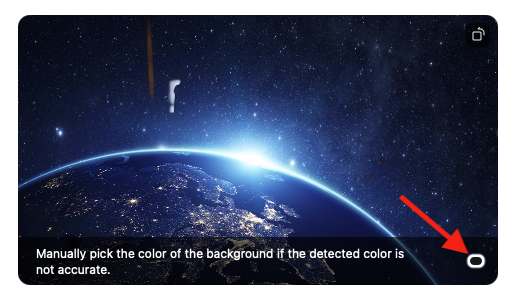
If you do not have the Virtual background tab in your desktop app settings after enabling it, sign out of the app, sign back in again, and check the settings again. Manually pick the background color to ensure the correct color is selected. This option is only available after you click an image and have I have a green screen selected. Ensure that the background is a solid color with minimal shadows. Also, ensure the background is uniform in lighting. A 3-point lighting setup is ideal. Ensure that your green screen color does not match your shirt, hair, or eye color. Black bars on the sides of your video when virtual background is enabled? Ensure that HD video is enabled in your Video settings . If you are using VDI, some plugins do not support virtual backgrounds and less powerful thin client machines may also be unable to support the feature. Support for additional VDI platforms is in development and customers should check with their sales representative for updates.