The Zoom Workplace desktop app interface was updated in version 6.7.0. The following instructions are based on the updates made in version 6.7.0.
Zoom unifies collaboration tools for communication, productivity, spaces, and employee engagement in an AI-first work platform, accessible through the Zoom Workplace app. On the Zoom Workplace desktop app, you can schedule, host, and join meetings, chat with others, view your emails, manage your Zoom assets, use ZoomMate, and more, depending on your plan and feature permissions.
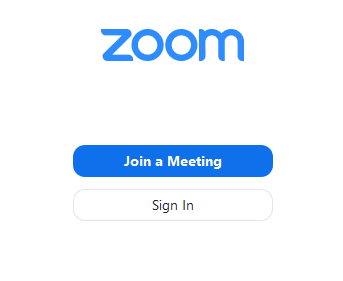
After installation, open the Zoom Workplace app on your device. When you open the app for the first time, you have the options to sign in, join a meeting, or sign up.
The Zoom Workplace desktop app interface was updated in version 6.7.0. The following instructions are based on the updates made in version 6.7.0.
On the Zoom desktop app, use the left navigation bar to select from various Zoom workspaces available to you, such as Chat, Calendar, Phone, Contacts, and Hub. You can customize your navigation bar by dragging or pinning tabs to fit your needs. The More  tab includes additional items not currently displayed on the left navigation bar, and your most recently used tab will appear above the More tab.
The left navigation bar also includes quick access to desktop settings. At the bottom, click the gear icon  to manage your settings.
In the app header, use the back  and forward
  icons to navigate between your recently visited pages, or click the history icon
  to view your recent history.
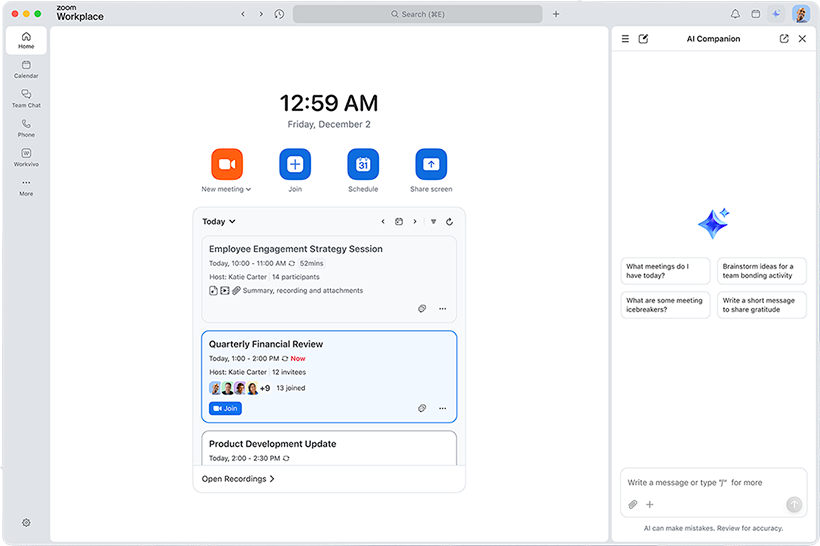
In the app header, use the search bar  to perform a global search of your Zoom Workplace account, including contacts, meetings, chats, channels, whiteboards, docs, and more. You can refine your search results for certain content types using sorting and filters.
Next to the search bar in the app header, click the plus icon (+) to access quick links for creating a new meeting, chat, doc, clip, and more.
In the app header, click the bell icon  to open the Activity feed. In the Activity feed, you can view your notifications, mark them as unread, filter the displayed notifications, and manage the types of notifications you receive.
In the app header, click the calendar icon  to open the calendar side panel. In the calendar side panel, you can view your upcoming meetings for the day or choose a different date to view scheduled meetings. Join a meeting directly from the calendar side panel, or click the ellipsis icon on a scheduled event to access options such as copying the invitation, emailing everyone, declining the invitation, and more.

If you have a Google, Microsoft 365, or Exchange account, connect your third-party calendar to manage all your meetings and events in one place in the Zoom Workplace app.
In the app header, click your profile picture (or initials) to access your profile information, set your availability and status message, check for updates, manage app settings, get support, and sign out.
From the Home tab or a product tab that supports the AI chat panel, click the Open AI chat icon  . In the AI chat panel, you can ask questions and receive tailored, contextual responses sourced from the different data sources and contexts available to you.
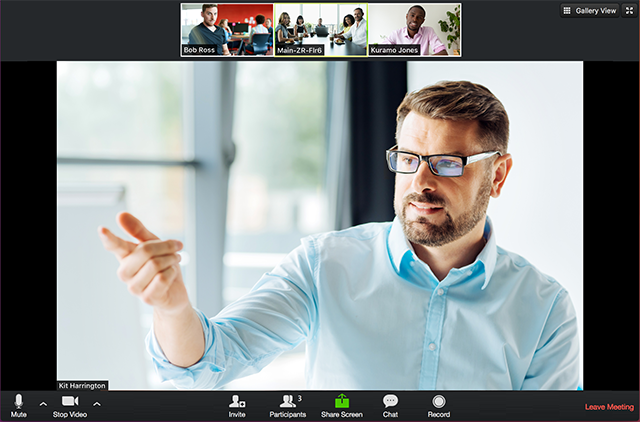
When you join or start a meeting, your meeting controls are available in the meeting controls toolbar located at the bottom of the meeting window (move your mouse in the Zoom window to display meeting controls if the toolbar isn’t visible). The meeting controls toolbar includes primary meeting functions depending on your meeting role and what features you have access to, such as Audio, Video, Participants, Chat, Share, and more. Additional options are available in the More  menu. You can customize the toolbar by dragging an icon to pin or remove it from the toolbar.
Learn more about meeting controls for hosts, co-hosts, and participants.
You can also join a test meeting to familiarize yourself with meeting controls before joining a scheduled meeting.