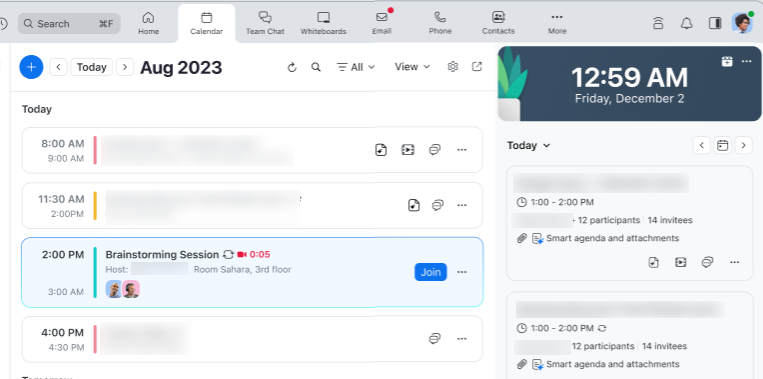
Viewing participants already in a meeting before joining
Learn how to check which participants have already joined a meeting before you enter, allowing you to see who is currently in the session and prepare accordingly.
Requirements for viewing participants already in a meeting before joining
How to view participants who already joined the meeting
Home tab
- Sign in to the Zoom Desktop app.
- Click the Home tab.
- Search for the meeting where you want to view the participants.
The initials or profile pictures of participants who have joined the meeting should appear under the Host section in the meeting details.
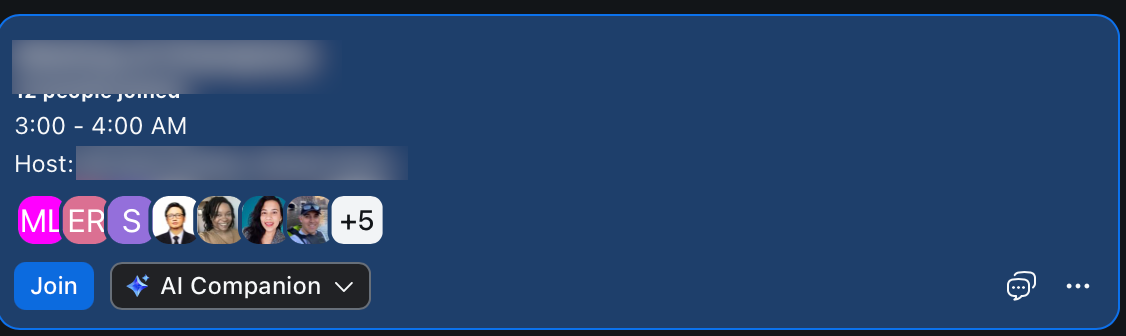
Calendar tab
- Sign in to the Zoom Desktop app.
- Click the Calendar tab.
- Select the meeting where you want to view the list of participants.
- In the calendar event card, under the Invitees section, click the forward arrow icon to view the list of participants who joined the meeting.
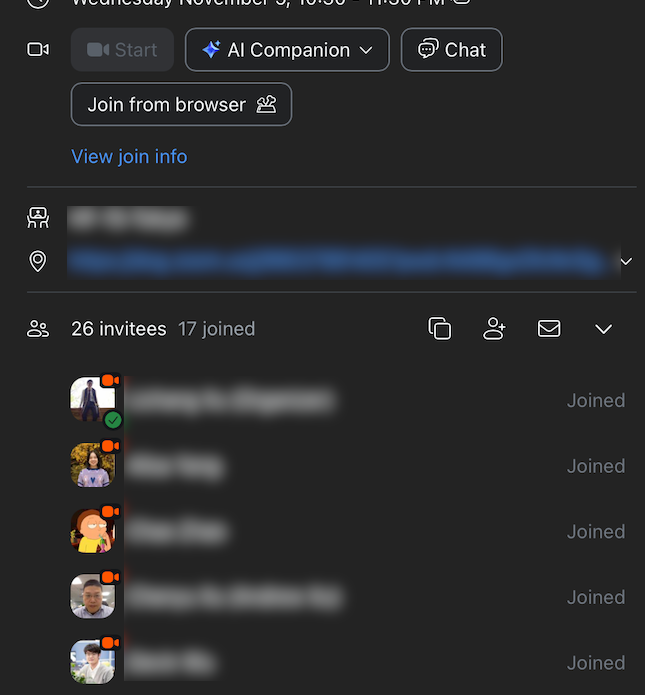
Agenda / Calendar view
Option 1
- Sign in to the Zoom Desktop app.
- Click the Calendar tab.
- In the upper right corner, click the Calendar side panel
 button.
 - Select the meeting where you want to view the list of participants.
- In the calendar event card, the initials or profile pictures of participants who have joined the meeting should appear.
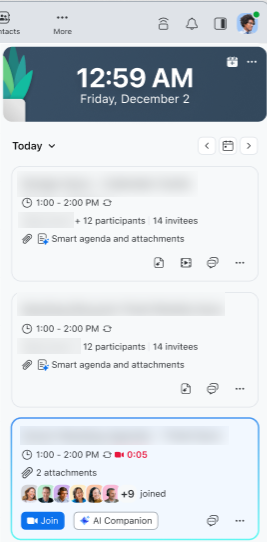
Option 2
- Sign in to the Zoom Desktop app.
- Click the Calendar tab.
- In the upper right corner, click the drop-down menu and select Day.
- Your calendar view will change to Day view or a time grid.
- Select the meeting where you want to view the list of participants.
- In the calendar event card, the initials or profile pictures of participants who have joined the meeting should appear under Host.