Introducing the new Zoom Web experience
The new Zoom Web experience offers a unified, intuitive interface to help users access key features faster and manage settings more efficiently.
Requirements for the new Zoom Web experience
The new Zoom Web experience is rolling out in phases. Find your customer type below to understand when the changes will take effect on your account.
Existing Direct accounts with a subscription purchased through a Zoom sales representative, or customers with Feature Release Controls enabled:
- May 28, 2026:
- The new Zoom Web experience launches for Direct and Feature Release Controls customers, marking the start of the transition period.
- During this time, account owners and admins can control whether users in their account have access to the new experience. When access is enabled, users will see a Try new experience toggle at the top of their web portal, giving them an opportunity to explore and familiarize themselves with the new interface.
- September 30, 2026:
- The new Zoom Web experience becomes generally available for Direct and Feature Release Controls customers.
- The legacy experience will no longer be accessible, and the Try new experience toggle will be removed.
- Note: Direct customers who sign up on or after May 28, 2026, will have the new Zoom Web experience by default and will not have the option to access the legacy experience.
Indirect and channel customers:
- June 21, 2026:
- The new Zoom Web experience launches for Indirect and Channel customers, marking the start of the transition period.
- During this time, account owners and admins can control whether users in their account have access to the new experience. When access is enabled, users will see a Try new experience toggle at the top of their web portal, giving them an opportunity to explore and familiarize themselves with the new interface.
- October 31, 2026:
- The new Zoom Web experience becomes generally available for Indirect and Channel customers.
- The legacy experience will no longer be accessible, and the Try new experience toggle will be removed.
Customers who purchased online:
- November 3, 2026:
- The new Zoom Web experience will tentatively begin rolling out to customers who purchased their accounts online.
- Availability will gradually expand to Online customers over the coming months.
Workplace web simplification enhancements
Redesigned web home experience
The web signed-in homepage offers a cleaner layout, similar to the desktop app, with the universal header, meeting actions to start, join, or schedule a meeting, and quick access to your meeting assets.
Due to the redesigned homepage in the Zoom web portal, Zoom does not recommend that organizations block the Zoom Web App for their users, as doing so will break product functionality. Learn more about
alternative solutions to manage access to the Zoom Web App.
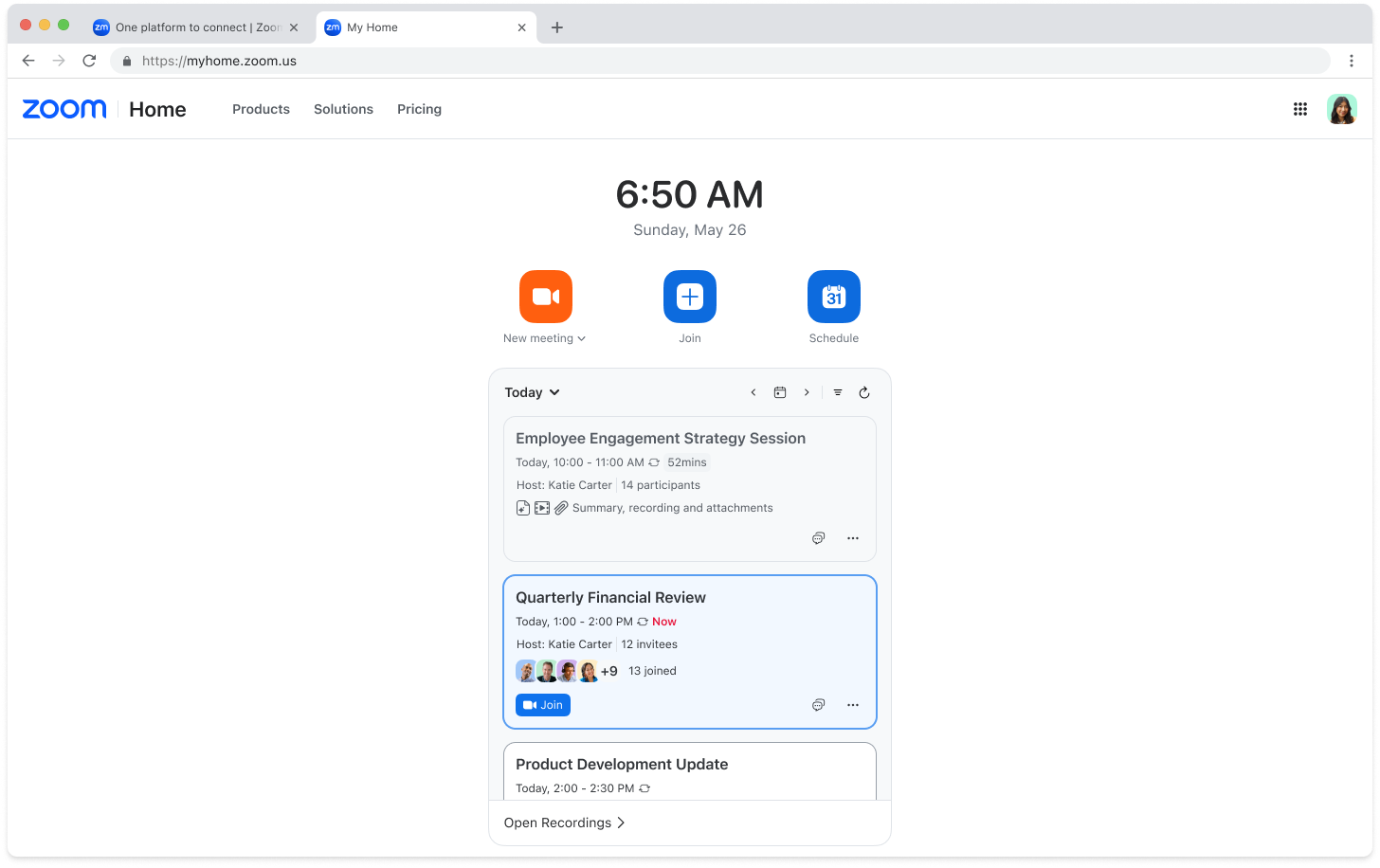
Universal header and simplified navigation
The enhanced header provides universal access to Home, product waffle menu, and profile menu.
Before

After

Product waffle menu
Located in the top-right corner of the universal header, the product waffle menu replaces the previous left navigation panel and provides a unified cross-product navigation. It opens each product in a new tab on the web browser, allowing users to configure a product’s settings on its own page. To customize how the products appear, click the product waffle menu, then drag and drop items to reorder them.
Before
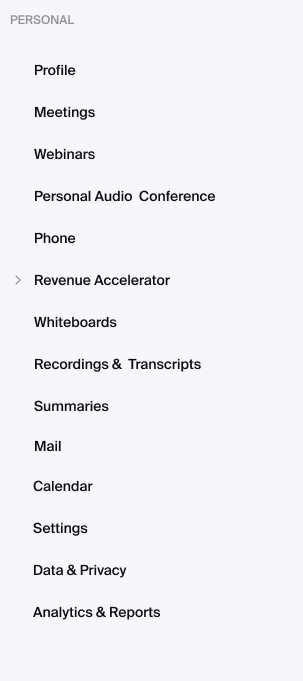
After
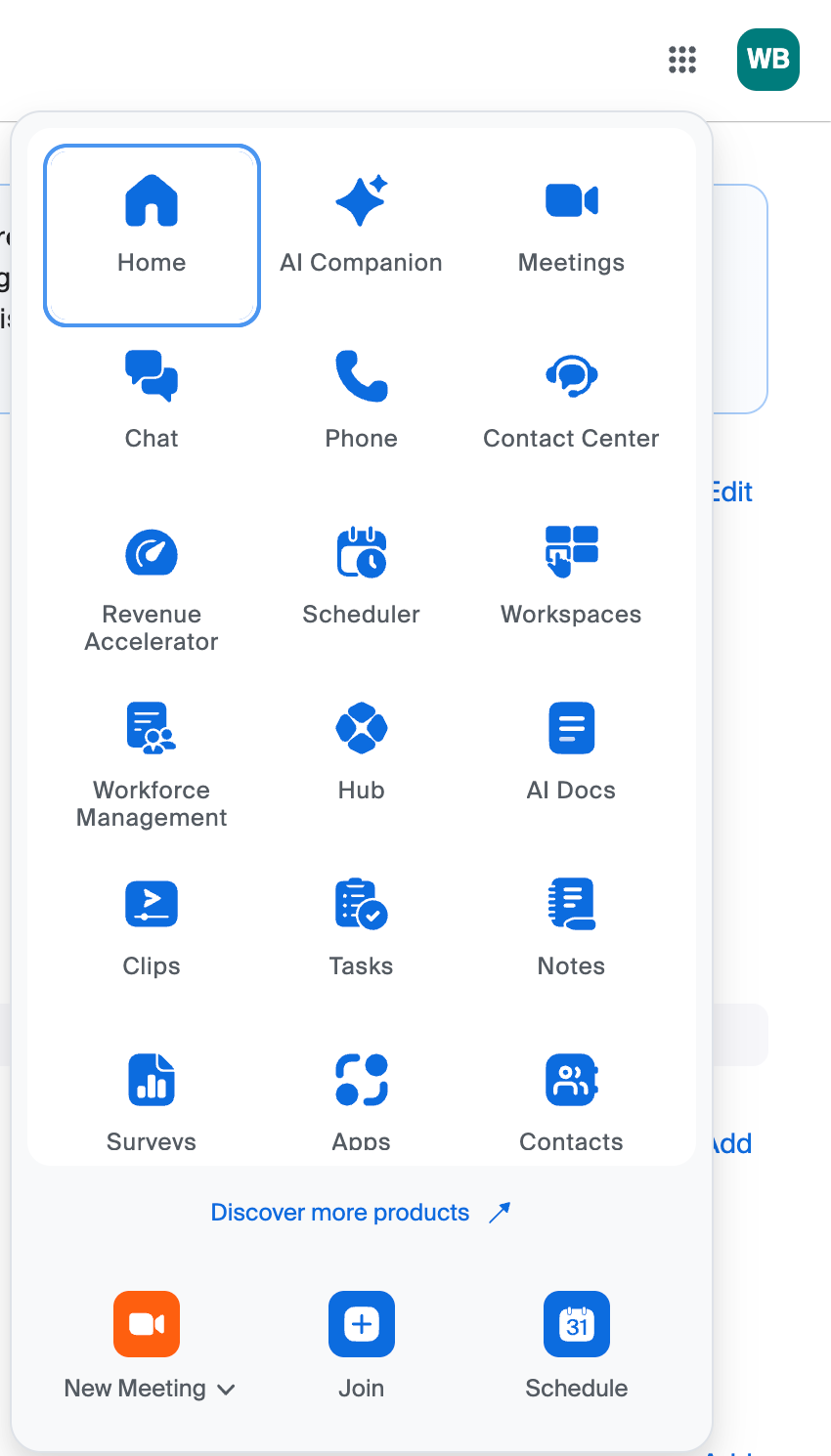
Profile menu
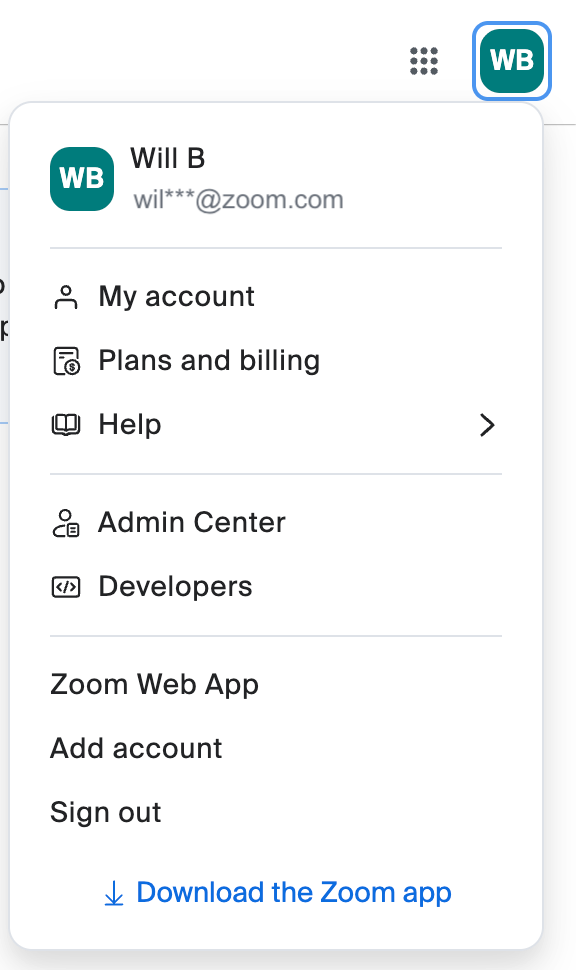
Located in the top-right corner next to the product waffle menu, the new Profile menu has more options and provides a clear split between personal and admin controls. Users can click Profile to access their personal profile information and click Settings to access user-level settings. Account owners and admins can click Admin Center to access account management.
Before
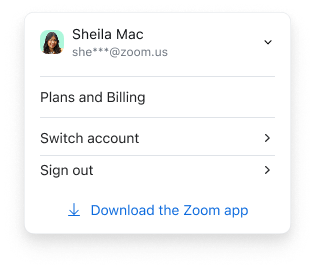
After
My account
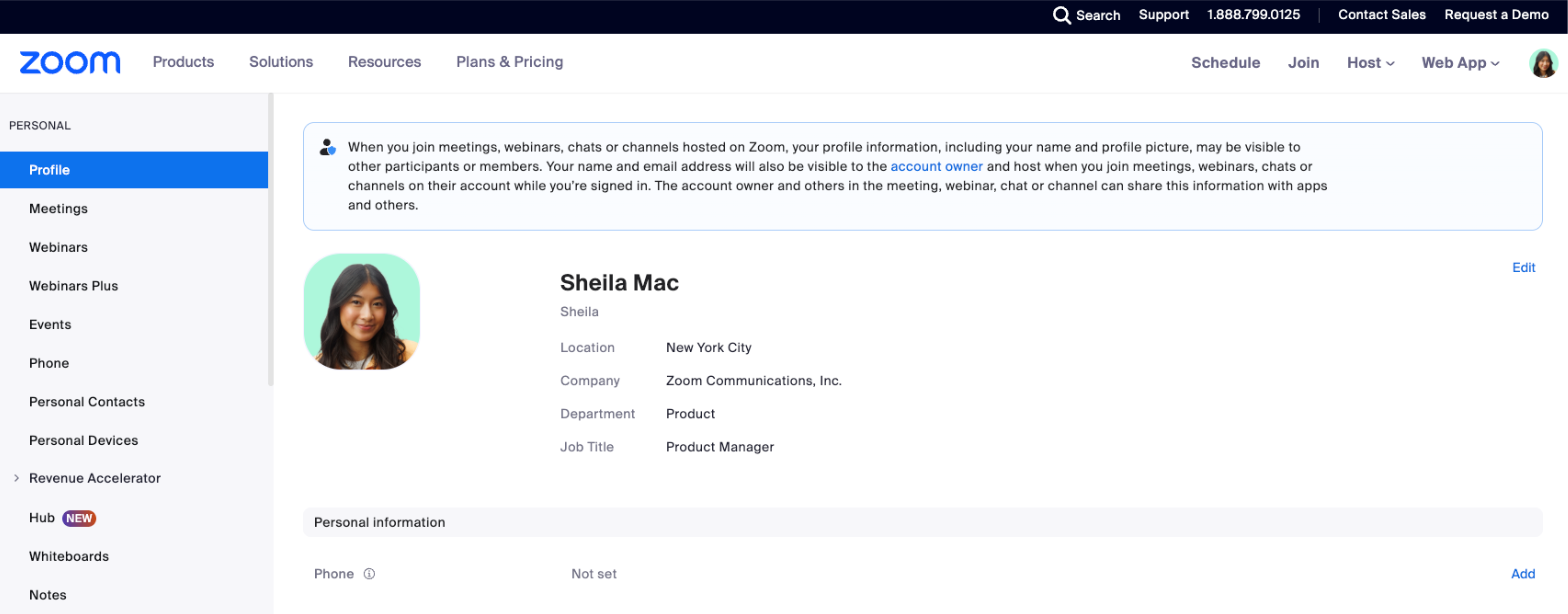
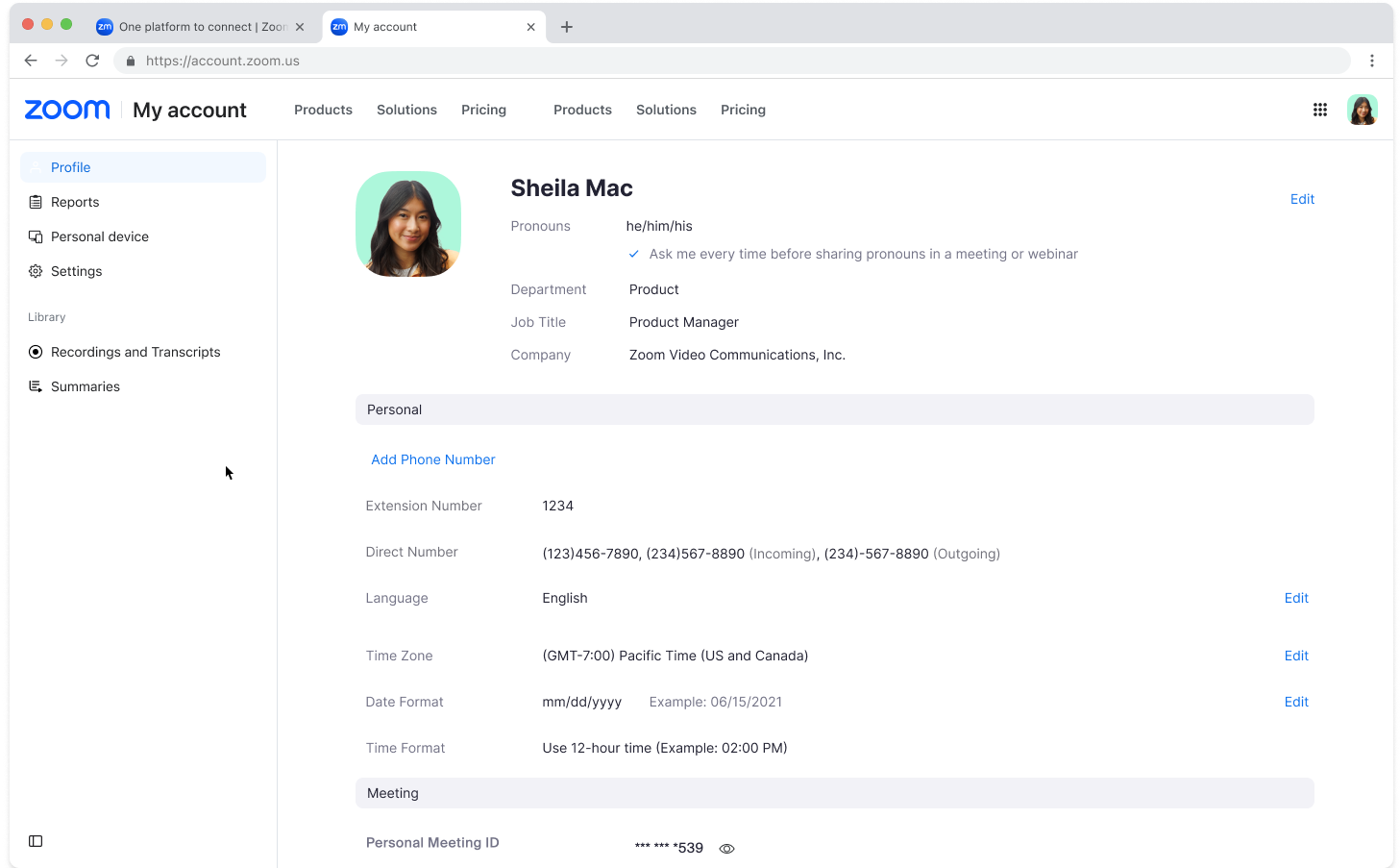
In My account, users can manage their profile and product-specific settings for personal use. Some features that were originally accessible from the left navigation menu were moved under My account, such as:
- Profile: Manage your personal profile information, including your name and picture.
- Reports (previously Analytics & Reports): Access usage reports for meetings, webinars, and more.
- Personal Contacts: Store and manage your personal contacts in Zoom.
- Personal Devices: Manage collaboration devices configured on your account.
- Settings: Enable or disable Zoom features for your own use.
Note: Settings can be turned on or off and locked by account owners and admins. - Recordings and Transcripts: Access your cloud recordings, recordings shared with you, computer recordings, and transcripts.
- Summaries: Access your meeting summaries and summaries shared with you.
Before
After
Admin center
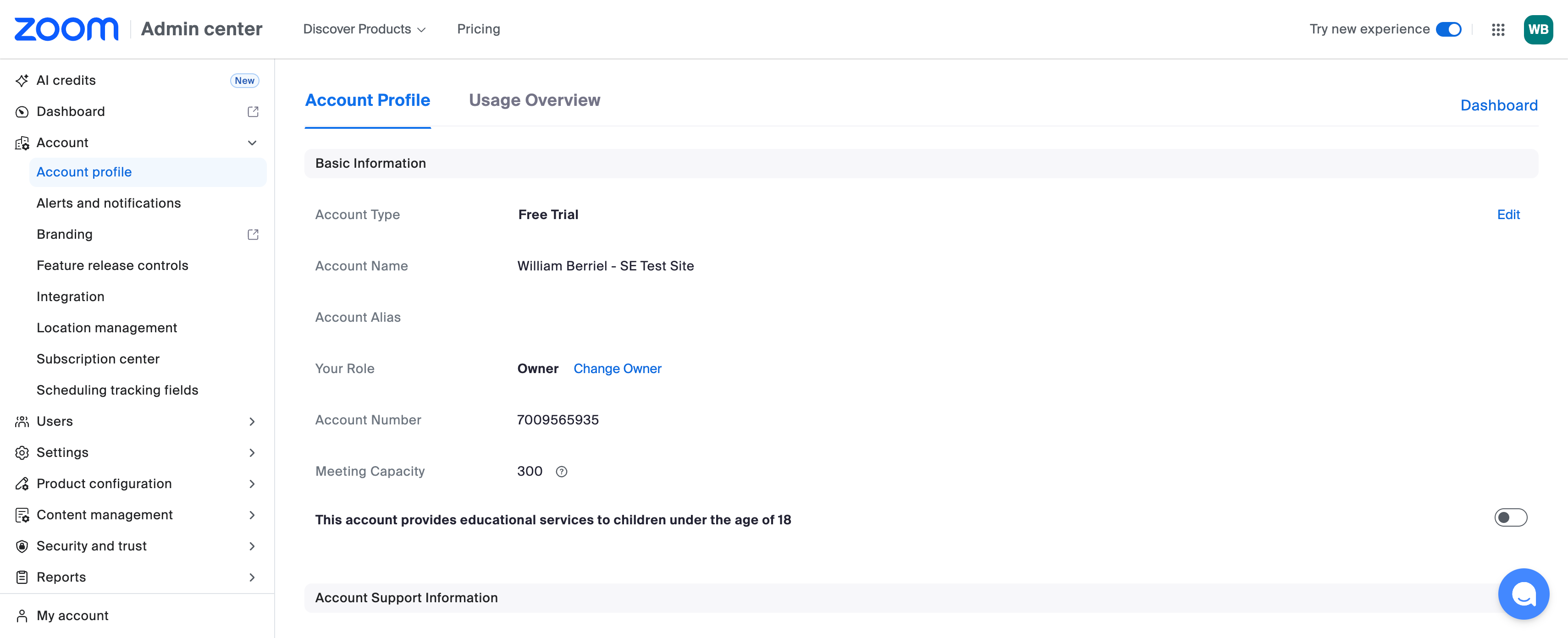
The Admin center replaces the Account Management (ADMIN) section previously accessible from the left navigation menu. Account owners, administrators, and users with Role Management permissions will see this option in the Profile menu.
Admin experience summary of changes:
- New centralized Admin center portal: Replaces the previous Account Management (ADMIN) section at the bottom of the left navigation menu.
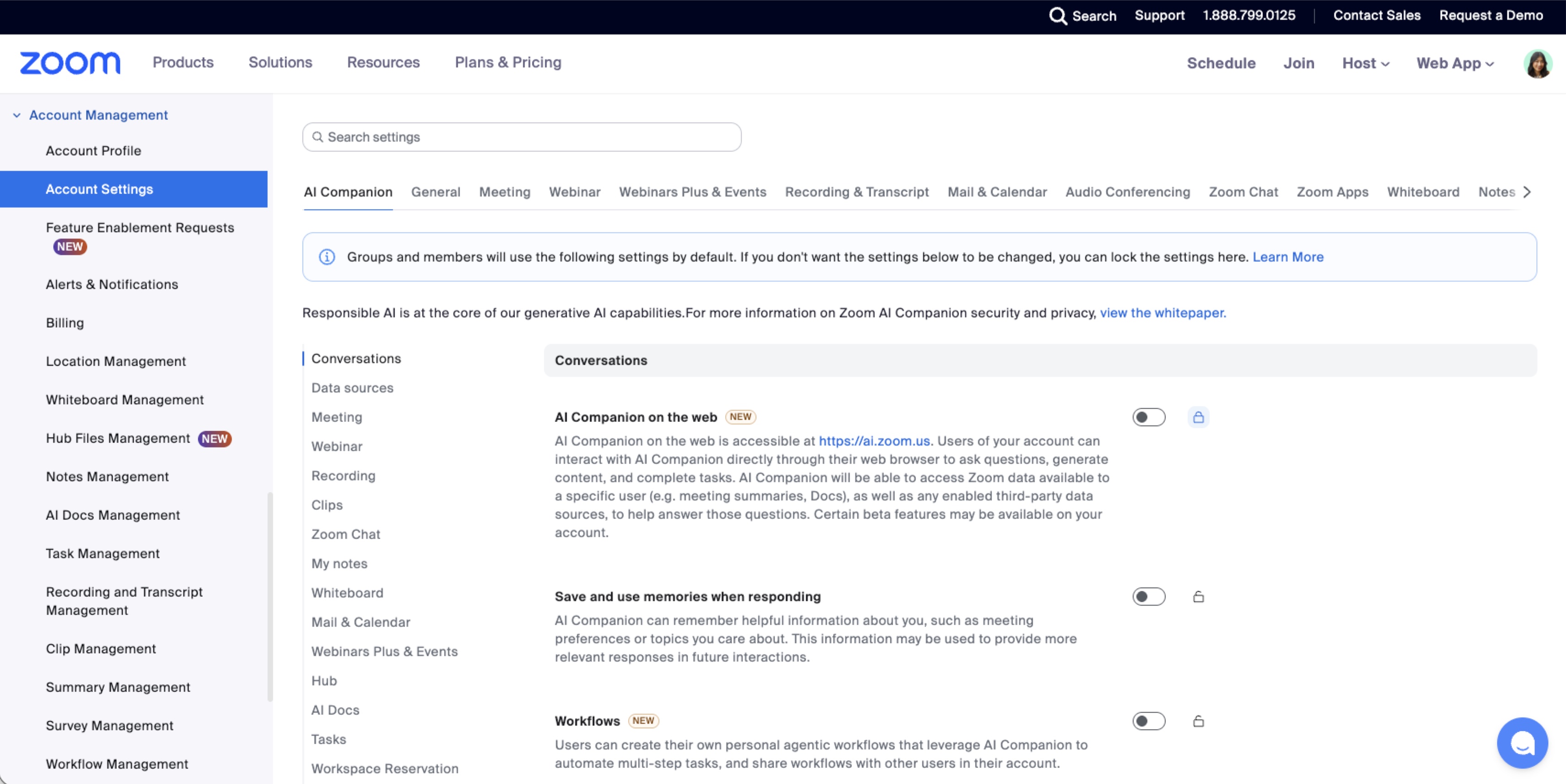
- Updated left navigation hierarchy: A more intuitive structure helps admins access common tasks faster, including some terminology updates (for example, Account Settings is now Settings).
- Simplified Settings pages: The top horizontal navigation bar for switching between Zoom products has been removed. Product navigation is now handled directly through the updated left navigation menu.
- New search bar: Quickly find and navigate to user details, account settings, and other Admin Center pages without manual browsing.
- Branding customization changes: Learn more about updates to the branding customization experience.
- What remains the same: Existing admin page functionality is unaffected by this launch. Individual pages will continue to be updated and improved independently of the new Zoom Web experience.
The new Admin center includes:
- Dashboard: Access the Zoom Workplace Dashboard.
- Account management: Manage and view account profile information, alerts and notifications, branding settings, and more.
- Users (previously User Management): Centrally manage users and groups, assign roles and contacts, and allocate licenses.
- Settings (previously Account Settings): Change settings for all users in your account. You can lock settings on or off to prevent users from changing them.
- Product configuration: Set up and configure products such as AI Studio, Contact Center, Phone, Node, Mesh, Chat and more.
- Content management: View and manage user-generated content across different applications as an admin subject to account permissions and applicable privacy settings.
- Security and trust: Manage security and privacy settings related to password requirements, sign-in methods, SSO configuration, and more.
- Reports: Provides account owners and admins with various account, meeting, and webinar statistics to review how your organization is utilizing Zoom.
- Billing: Efficiently manage your Zoom subscription in the billing portal, where you can handle tasks including viewing or renewing your subscription, upgrading your account, canceling a plan, paying an invoice, and more.
- Customer management: Manage external accounts for channel.
- Delegated accounts (previously External Accounts): Manage external accounts using delegated account administration.
- Subaccounts: Zoom sub-accounts enable master accounts to manage separate, independent, or subsidiary accounts, offering customized security, billing, and branding.
- Marketplace management: Account owners and admins can access the Zoom App Marketplace where they can find and integrate apps to enhance their Zoom experience. It allows them to search for, review, and install apps for use in Zoom products like Meetings, Webinars, and Chat.
Note: The available options depend on your account type and feature availability.
Before
After
Branding
As part of the new web experience, there are some changes to the branding customization experience. Previously configured custom branding will not carry over to the new web experience. To ensure a consistent branded experience for your users, an account owner or admin will need to reconfigure your organization's branding through the updated Zoom admin settings. We recommend completing this after the new experience launches.
In the new experience, you can find branding settings under Admin center > Account > Branding.
| Branding component | Impact on your current branding |
|---|
| Landing page | No changes needed. HTML will still be supported on the Landing Page. |
| Header, footer, sidebar | Branding on the header and footer will need to be set up again on the new web experience.
- Admins will need to set up the branding on the header and footer after migrating to the new web experience.
- Zoom is updating its header to a universal header across all pages. The enhanced header provides universal access to Home, the product waffle menu, and user profile menu.
- The new branding on the Header and Footer does not support HTML and will need to be configured manually.
|
| CSS | CSS will no longer be supported in the new web experience and will not be visible. |
| Images | No changes needed |
| Emails | No changes needed |
| Brand kit | No changes needed |
| Zoom Rooms | No changes needed |
| Meetings and webinars | No changes needed |
| Zoom Events | No changes needed |
