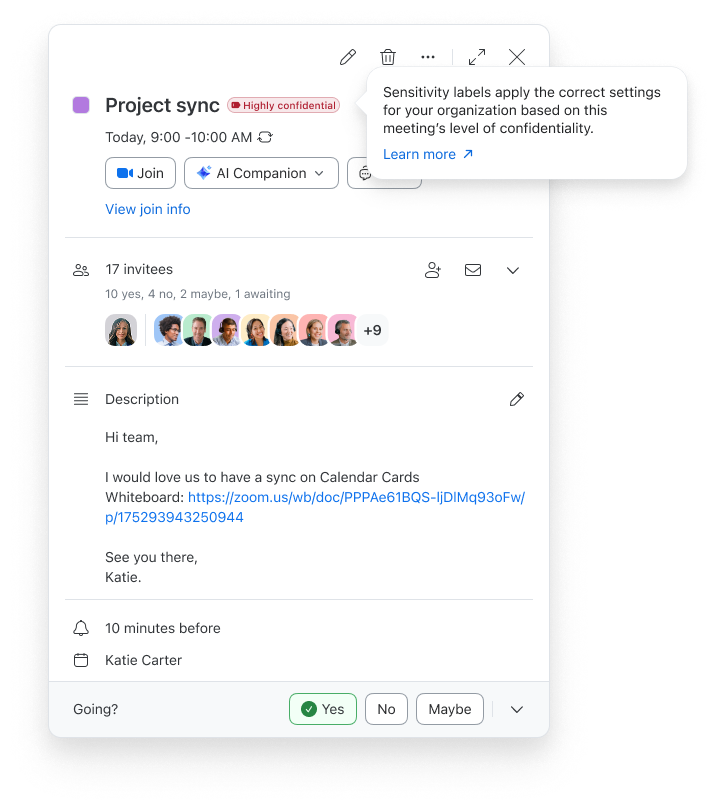
Sensitivity labels help your organization maintain consistent security and compliance policies across Zoom Meetings by applying the correct settings for your organization based on the meeting’s level of confidentiality.
Sensitivity labels can automatically apply meeting settings and controls based on your organization's data handling policies when users are scheduling meetings. When users start Instant meetings, Zoom automatically applies your organization's default sensitivity label.
Requirements for using sensitivity labels for Zoom Meetings
Limitations for using sensitivity labels for Zoom Meetings
Meetings that were scheduled using Outlook, Google Calendar, or any third-party applications where the label is not specified or supported will run as unlabeled.
Sensitivity labels are not designed to override technical requirements or security configurations that are incompatible with a required feature.
If a sensitivity label requires a feature that cannot operate because of another meeting setting, the feature will not be enabled. The meeting will continue using the selected security settings without modification. For example: A sensitivity label may be configured to automatically enable meeting summary with Zoom AI. However, AI features, such as meeting summary, are only compatible with standard Zoom meeting encryption to process real-time meeting content. If End-to-End Encryption (E2EE) is enabled for the meeting, AI features cannot access relevant meeting data and will not run. In this scenario, the meeting continues to use E2EE, and the meeting summary specified by the sensitivity label is not generated
How to apply sensitivity labels when scheduling a Zoom meeting
Note: Meetings scheduled before sensitivity labels were enabled are assigned a No label classification by default. If a host opens and edits these meetings after the setting is enabled, your organization's default sensitivity label will be automatically applied. As the host, you can keep or select a different label, based on your organization’s policies, before saving the changes.
How to view sensitivity labels applied to meetings
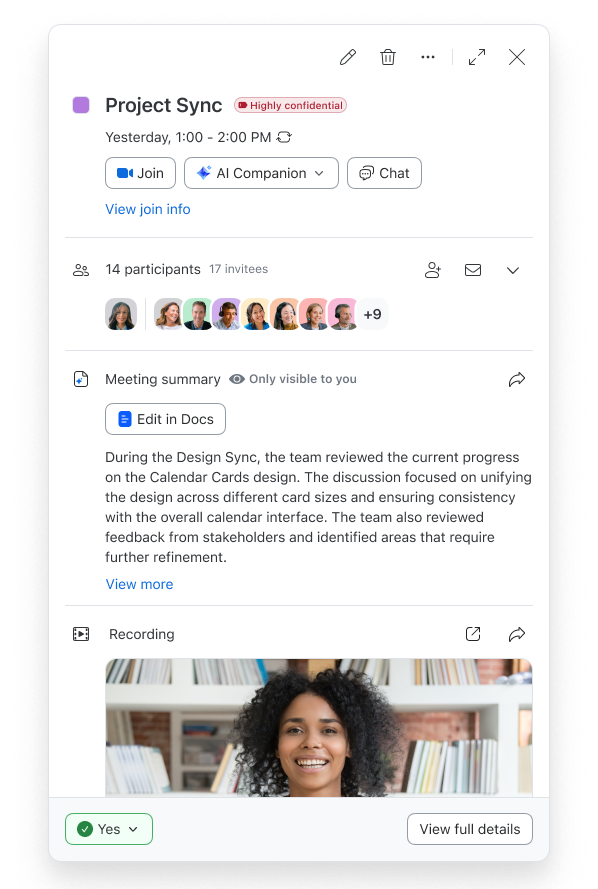
When a sensitivity label is applied to a meeting, the meeting's classification is displayed next to the meeting name. The classification can be viewed on the meeting card before and after the meeting, and under meeting information during the meeting.
Sensitivity labels may restrict changes to certain meeting settings based on your organization's policies. If a host attempts to modify a setting controlled by the sensitivity label, Zoom prevents the change and displays a notification explaining that the setting is managed by the applied sensitivity label.