The Zoom Web App brings the full Zoom Workplace experience to your browser, no downloads or plugins required. You can schedule, host, and join meetings, chat, manage your Zoom assets, and access the same AI-first features available on the desktop app. The Zoom Web App is especially useful for users who prefer the web or are limited in what they can install, allowing them to stay productive entirely from their browser. For the best audio and video experience, Zoom recommends downloading the Zoom Workplace desktop app when possible.
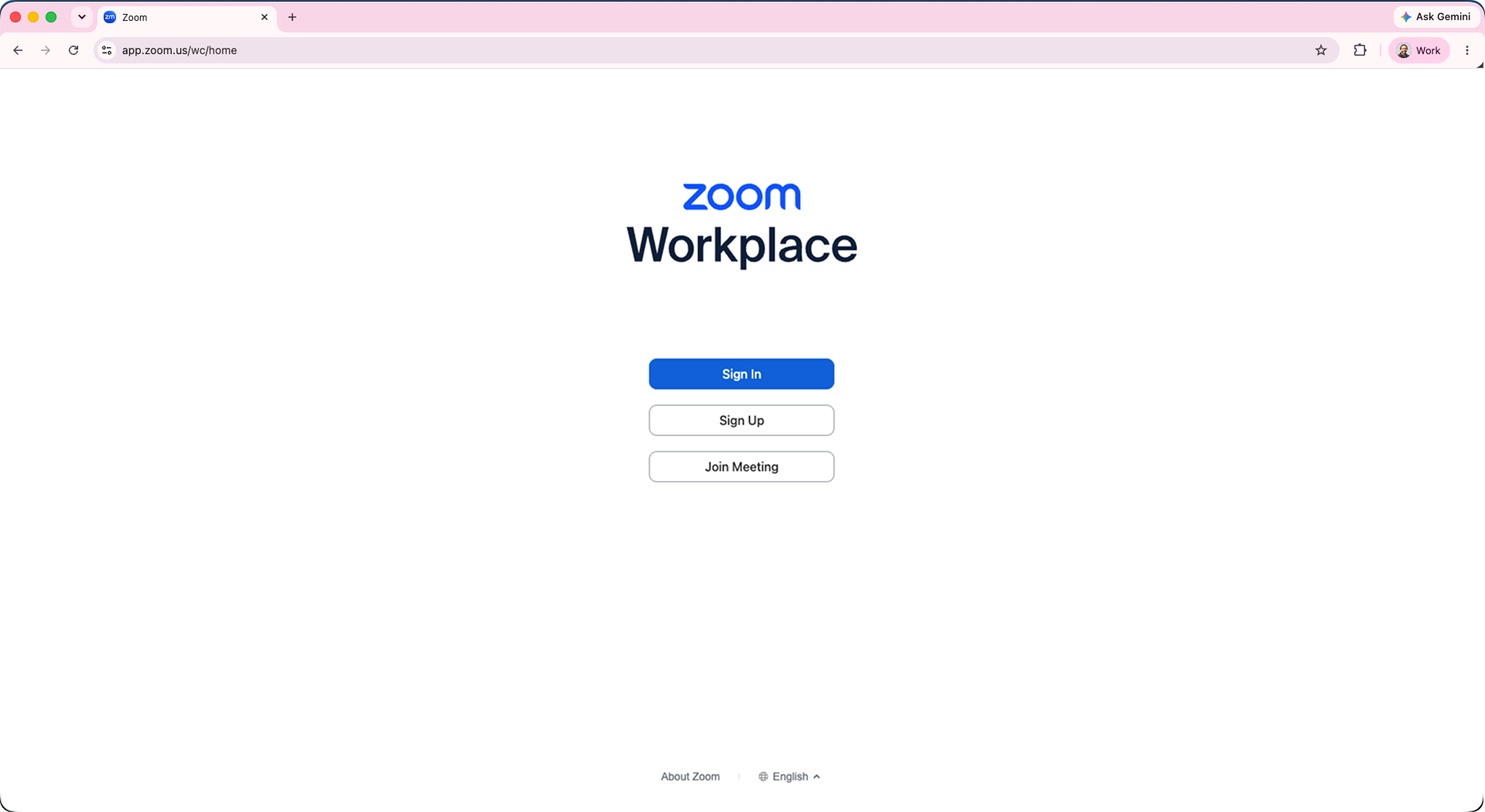
Open the Zoom Web App on your device. When you open the Web App for the first time, you have the options to sign in, join a meeting, or sign up.
Sign in: If you already have a Zoom account and want to sign in or start your own scheduled meeting, click Sign in.
Join a meeting: To join a meeting without signing in, click Join a meeting. You will be prompted to enter the meeting ID and passcode.
Sign up: If you don’t have a Zoom account yet, click Sign up to create a free Basic account.
How to use the Zoom Web App
Navigate through the Web App
On the Zoom Web App, use the left navigation bar to select from various Zoom products available to you, such as Chat, Calendar, Contacts and Phone. You can customize your navigation bar by dragging or pinning tabs to fit your needs.
The More tab includes additional items not currently displayed on the navigation bar. You'll see icons such Whiteboards, Clips, Tasks, Notes, Survey, Contacts and more. Your most recently used tab will appear above the More tab.
The left navigation bar also includes quick access to Web App settings. At the bottom, click the gear icon to manage your settings.
In the app header, use the back and forward icons to navigate between your recently visited pages, or click the history icon to view your recent history.
Discover Products
In the app header, click Discover Products to view and access other available Zoom products and features within the Zoom ecosystem, such as Zoom Meetings, Zoom Phone, Zoom Team Chat, and more.
Pricing
In the app header, click Pricing to view available Zoom Workplace subscription plans, pricing tiers, and feature comparisons.
Global search
In the app header, use the search bar to perform a global search of your Web App account, including contacts, meetings, chats, channels, whiteboards, docs, and more. You can also press ⌘K (Mac) or Ctrl+K (Windows) to quickly activate the search bar. You can refine your search results for certain content types using sorting and filters.
Admin Center
In the app header, click Admin Center to access the Zoom administrative console, where account administrators can manage users, security settings, billing, and organizational configurations.
Downloads
In the app header, click Download to download the Zoom Workplace desktop or mobile app.
Activity Center
In the app header, click the Activity Center iconto view and manage your notifications, including meeting invitations, chat mentions, missed calls, voicemails, and other alerts in one centralized location.
Zoom Products
In the app header, click the Zoom Products icon to view and quickly switch between other Zoom apps, tools, or integrated services available in your account.
Profile
In the app header, click your profile picture (or initials) to access your profile information, set your availability, view received shared calls, manage your settings, view available plans and billing, get support, add account, download the Zoom Workplace app, and sign out.
AI chat panel
From the Home tab or a product tab that supports the AI chat panel, click the Open AI chat icon . In the AI chat panel, you can ask questions and receive tailored, contextual responses sourced from the different data sources and contexts available to you.
How to use in-meeting controls
When you join or start a meeting, your meeting controls are available in the meeting controls toolbar located at the bottom of the meeting window (move your mouse in the Zoom window to display meeting controls if the toolbar isn’t visible). The meeting controls toolbar includes primary meeting functions depending on your meeting role and what features you have access to, such as Audio, Video, Participants, Chat, Share, and more. Additional options are available in the More menu. You can customize the toolbar by dragging an icon to pin or remove it from the toolbar.
Sign in to your Zoom account on the Zoom Support site and explore resources for the products included in your current plan
Visit the Zoom Learning Center to explore self-paced courses and learn the basics of Zoom anytime, at your own pace
Zoom does not recommend blocking the Zoom Web App, as doing so will break product functionality. Instead, consider the following alternatives:
The Zoom Web App supports IT admin policy management through network header controls. For example, you can enforce sign-in to a company account, which applies your organization's settings on the Zoom Web App.
The older Join meeting from browser setting, which a small subset of Zoom accounts still have, will be updated to no longer block the Zoom Web App home page. It will continue to block joining meetings in the browser and will be deprecated in early 2027.
The Zoom Web App can open meetings and webinars in the Zoom Workplace desktop app or Zoom Workplace mobile app by default (and the Zoom VDI Client in VDI environments). You can toggle this setting to allow users to join meetings and webinars directly on the Zoom Web App, skipping the app launcher page.
If you must block users from joining meetings on the Zoom Web App, only block the meeting and webinar paths explicitly (zoom.us/wc/*/join and zoom.us/wc/*/start). Do not block other pages, especially the home page.
If you have the branding and vanity URL feature enabled, you can adjust your entries to point to the page you want users to land on. For example, to direct users to their profile page (https://myvanity.zoom.us/profile) instead of the Zoom Web App home page (https://app.zoom.us), set https://myvanity.zoom.us/profile as your main entry by editing your vanity URL settings. Note that users who sign in directly from zoom.us or zoom.com will still land on the Zoom Web App home page.
Branding also allows you to customize header elements, such as the Discover products and Pricing links, and add your custom logo and colors.
 includes additional items not currently displayed on the navigation bar. You'll see icons such
  to manage your settings.
 and forward
  icons to navigate between your recently visited pages, or click the history icon
  to view your recent history.
 to perform a
  to view and manage your notifications, including meeting invitations, chat mentions, missed calls, voicemails, and other alerts in one centralized location.
 to view and quickly switch between other Zoom apps, tools, or integrated services available in your account.
 . In the AI chat panel, you can ask questions and receive tailored, contextual responses sourced from the different data sources and contexts available to you.
 menu. You can customize the toolbar by dragging an icon to pin or remove it from the toolbar.