Using Zoom Events Chat Compose with Zoom AI
Zoom Events Chat Compose with Zoom AI leverages AI technology, which may include third-party models, to help you write lobby chat messages by using context from your conversation. You’ll maintain the ability to change messages by adding tone, inputting prompts, or changing the length of the message to give you confidence in what you’re communicating.
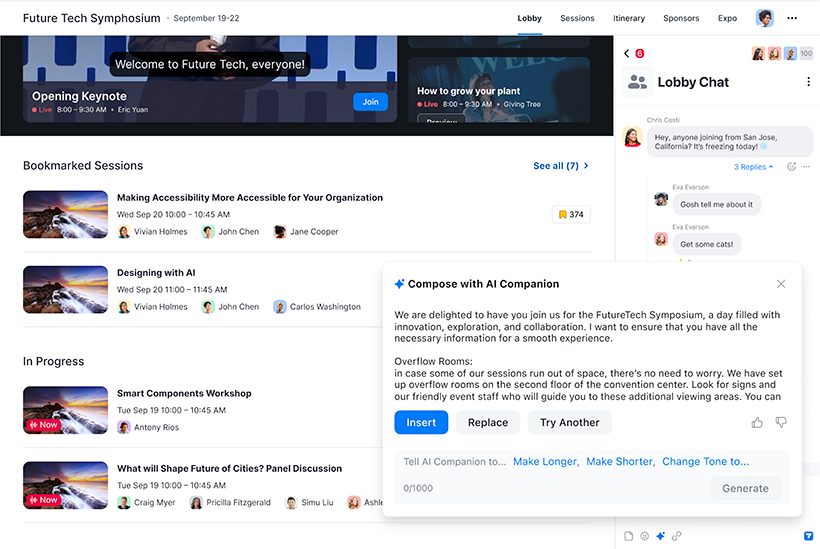
Additionally, hosts can manage Zoom Events Chat Compose with Zoom AI for their event chat at the event level.
Learn more about using Zoom Events lobby chat and how Zoom AI features handle your data.
For language availability, review the supported languages for Zoom AI features.
Requirements for using Zoom Events Compose with Zoom AI
Note: Zoom AI may not be available for select verticals and select regional customers.
Limitations of Zoom Events Chat Compose with Zoom AI
- Use of Zoom Events Chat Compose with Zoom AI is limited to 30 queries per day, per user.
How to reply to a message using Zoom Events Chat Compose with Zoom AI
- Join an event lobby.
- In the Chat panel, click the chat that you want to access.
- Next to the message you want to respond to, click the ellipsis
 .
.
Additional options for this message will appear. - Click Reply with Zoom AI.
A window will open to generate a response. The message you are responding to will be the basis for the generated reply. - Tell Zoom AI to... (Optional): Provide a draft of what your response would look like, or enter a command for Zoom AI. This gives additional context and a sample of your writing style for Zoom AI to mimic in its generated reply. This can be up to 1000 characters.
- Click Generate.
Your generated response will appear. - (Optional) If the generated response is not entirely satisfactory, click Try another to have a new response generated.
- (Optional) You can reconfigure the response with the Make Longer, Make Shorter, or Change Tone to... options. Select one of these options, and click Generate for a new response.
Add or adjust your drafted response to better guide and influence the rephrased response. - When you are satisfied with the generated response, click Insert or Replace.
Insert copies the generated response into the reply compose box without changing any previous drafts you have created. Replace copies the generated response into the reply compose box and overwrites the current draft. - Press Enter or click the send icon
 .
.
How to create a message using Zoom Events Chat Compose with Zoom AI
- Join an event lobby.
- In the Chat panel, click the chat that you want to access.
- Click the Zoom AI icon
 in the app message box, or at the bottom of the app window.
A window will open to generate a message. - Provide a draft of what your response would look like, or enter a command in the Tell Zoom AI to... box. This gives additional context and a sample of your writing style for Zoom AI to mimic in its generated reply. This can be up to 1000 characters.
- Click Generate.
Your generated response will appear. - (Optional) If the generated response is not entirely satisfactory, click Try another to have a new response generated.
- (Optional) You can reconfigure the response with the Make Longer, Make Shorter, or Change Tone to... options. Select one of these options, and click Generate for a new response.
Add or adjust your drafted response to better guide and influence the rephrased response. - When you are satisfied with the generated response, click Insert or Replace.
Insert copies the generated response into the reply compose box without changing any previous drafts you have created. Replace copies the generated response into the reply compose box and overwrites the current draft. - Press Enter or click the send icon .