Using focus mode

Focus mode is designed with the digital learning environment in mind, allowing students to stay attentive or work on their tasks while under supervision, without being distracted by others and their tasks. This feature gives the host and co-hosts view of all participants’ videos without other participants seeing each other. This extends into screen sharing, as the host and co-host can view and switch between each participant’s shared screen, while the participants can only view their own content. If the host finds a participant’s content should be shared with others, they can easily begin sharing the participant’s screen with others.

Besides the host, co-hosts, and participants spotlighted by the host, participants in focus mode can still see their own video but only see other participants' names, their nonverbal feedback or reactions, and hear them when unmuted.

If enabled, hosts also have the ability to schedule meetings with focus mode, so that the meeting automatically starts with focus mode on.

Requirements for using focus mode in a Zoom meeting

Note: Besides the desktop app and mobile apps, focus mode can also be initiated from a Zoom Room.

Limitations of focus mode

Table of Contents

How to use focus mode in a meeting

Windows | macOS

Start focus mode

  1. Start a meeting as the host or co-host.
  2. In the meeting controls toolbar, click the More icon .
  3. Click the Host tools icon .
  4. Click Advanced.
  5. Click the Focus mode toggle to enable it.
  6. Click Start to confirm, or select the Don’t ask me again check box to skip this confirmation moving forward.
    When focus mode starts, you and the participants are notified with a banner along the top of the meeting window. While focus mode is active, the focus mode icon is visible in the top-right corner of the meeting window.

Participants in focus mode will only see the video of the host, co-hosts, any participants spotlighted by the host, and their own video. They will only see other participants' names, their nonverbal feedback or reactions, and hear them when unmuted.

Participants’ shared screens are only visible to the host and co-hosts, but the host can allow all other participants to view as well:

  1. In the meeting controls toolbar, to the right of the Share icon , click the up arrow icon .
  2. Click Host tools for share.
  3. In the Shared screens can be seen by section, select All participants.
  4. (Optional) To return to just host and co-hosts viewing shared content, select Host only.
    Note: These options are only available when in focus mode.

End focus mode

  1. As the host or co-host, in the meeting controls toolbar, click the More icon .
  2. Click the Host tools icon .
  3. Click Advanced.
  4. Click the Focus mode toggle to disable it.
    When focus mode ends, you and the participants are notified with a banner along the top of the window that focus mode is ending, and participants with their video on will be seen by everyone.
Android | iOS

Start focus mode

  1. Start a meeting as the host or co-host.
  2. In the meeting controls toolbar, tap the More icon .
  3. Tap the Host tools icon .
  4. Tap General.
  5. Tap the Focus mode toggle to enable it.
  6. Tap Start to confirm.
    When focus mode begins, you and the participants are notified with a banner along the top of the meeting window. While focus mode is active, the focus mode  icon is visible in the top-left corner of the meeting window.

Participants in focus mode will only see the video of the host, co-hosts, any participants spotlighted by the host, and their own video. They will only see other participants' names, their nonverbal feedback or reactions, and hear them when unmuted.

End focus mode

  1. In the meeting controls toolbar, tap the More icon .
  2. Tap the Host tools icon .
  3. Tap General.
  4. Tap the Focus mode toggle to disable it.
    When focus mode ends, you and the participants are notified with a banner along the top of the window that focus mode is ending, and participants with their video on will be seen by everyone.
Web app

Start focus mode

  1. In the Zoom Web App, start a meeting as the host or co-host.
  2. In the meeting controls toolbar, click the More icon .
  3. Click Start Focus Mode.
  4. Click Start to confirm, or select the Don’t ask me again check box to skip this confirmation moving forward.
    When focus mode starts, you and the participants are notified with a banner along the top of the meeting window. While focus mode is active, the focus mode icon is visible in the top-right corner of the meeting window.

Participants in focus mode will only see the video of the host, co-hosts, any participants spotlighted by the host, and their own video. They will only see other participants' names, their nonverbal feedback or reactions, and hear them when unmuted.

Participants’ shared screens are only visible to the host and co-hosts, but the host can allow all other participants to view as well:

  1. In the meeting controls toolbar, to the right of the Share Screen icon, click the up arrow icon .
  2. Under Shared screens can be seen by, select All participants.
  3. (Optional) To return to just host and co-hosts viewing shared content, select Host only.
    Note: These options are only available when in focus mode.

End focus mode

  1. As the host or co-host, in the meeting controls toolbar, click the More icon .
  2. Click the Stop Focus Mode.
    When focus mode ends, you and the participants are notified with a banner along the top of the window that focus mode is ending, and participants with their video on will be seen by everyone.

Focus mode examples

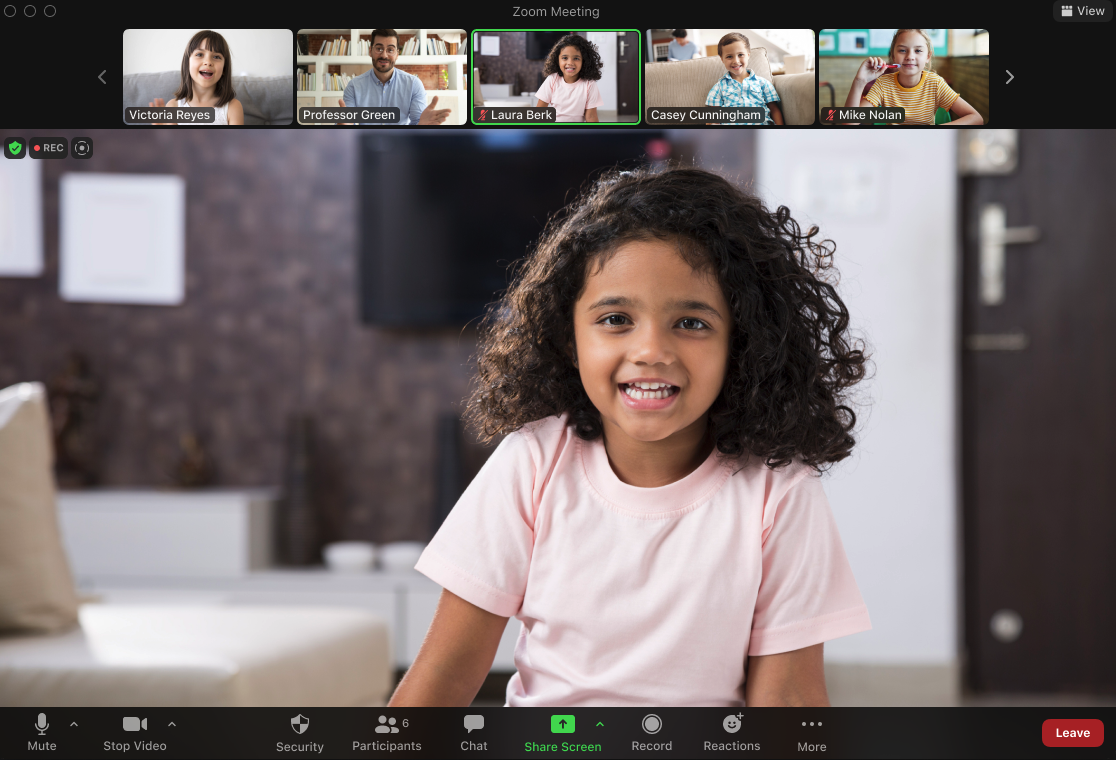
Host view

The following image shows the host's or co-host's perspective in a meeting with focus mode enabled. They can see their own video, as well as the videos of meeting participants who have their video enabled.

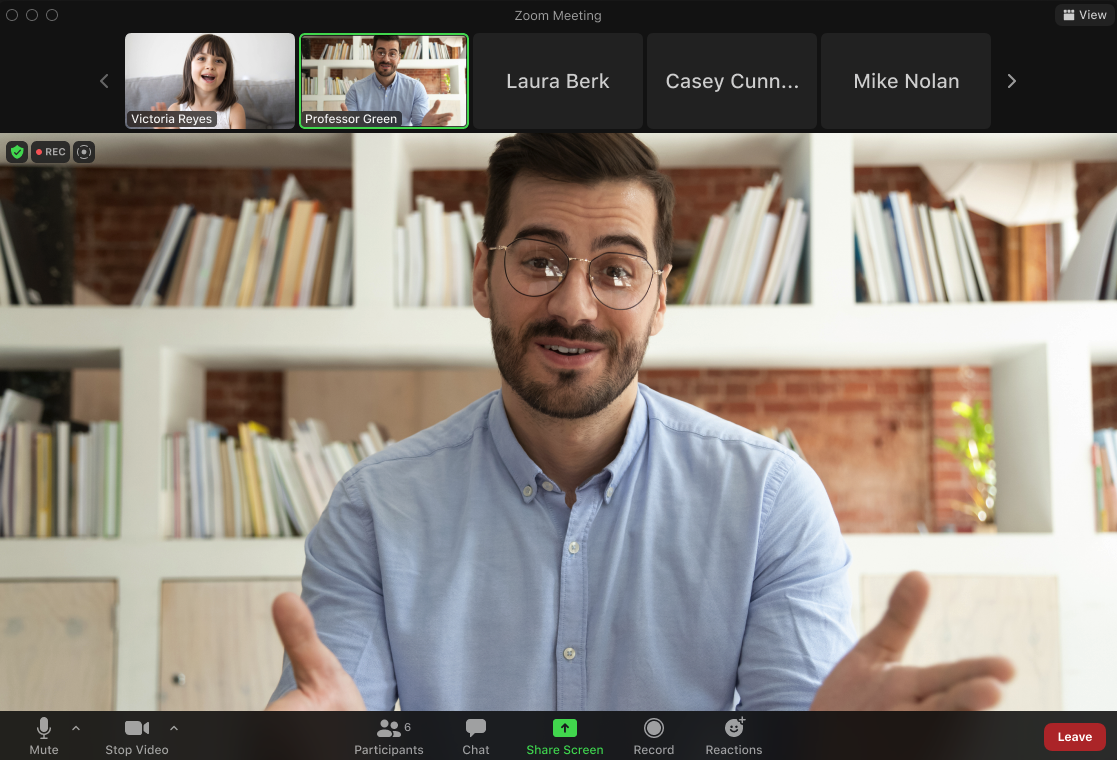
Participant view

The following image shows a participant's perspective in a meeting with focus mode enabled. They can see their own video, the host or co-host's video, and the names of the other meeting participants.